Energy-Saving App
This energy-saving application will dynamically power off a switch when the average bandwidth utilization of its links drops below a low-watermark threshold and will power it on again when its average link utilization exceeds a high-watermark threshold. For a network whose topology is like that of a datacenter network with many redundnt switches to increase the total capacity of the network and reliability, this energy-saving application can dynamically and iteratively power off many under-utilized switches to greatly reduce the energy consumption of the network without degrading the Quality of Service (QoS) of the network.
| Component | Description | Format | Link |
|---|---|---|---|
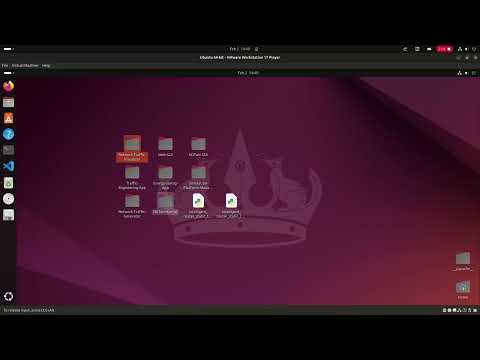
| Pre-configured Demo VM | A fully set up virtual environment with all NDTwin components installed. Requires VMware. | .ova | Download |
This manual provides a step-by-step guide to deploying the NDTwin Energy Saving.
1. Ryu SDN Controller
- Path:
~/NDTwin/Desktop - Environment:
ryu-env - Note: The controller must be started first to observe and manage the network links.
Navigate to the directory:
cd ~/NDTwin/Desktop
Activate the environment:
conda activate ryu-env
Execute the controller:
ryu-manager intelligent_router_static_topo2.py --observe-link
2. Mininet Network Topology
- Path:
~/Desktop/Network-Traffic-Generator - Environment:
ntg_env - Note: Password for
sudoisndtwin. This step builds a network topology with 128 nodes.
Navigate to the directory:
cd ~/Desktop/Network-Traffic-Generator
Activate the environment:
conda activate ntg_env
Execute the topology script:
sudo $(which python) example_topology.py
3. NDTwin Kernel
- Path:
~/NDTwin/NDTwin-Kernel/build - Note: Requires manual selection of deployment and AI features during startup.
Navigate to the build directory:
cd ~/NDTwin/NDTwin-Kernel/build
Execute the kernel:
sudo ./bin/ndtwin_kernel --loglevel info
Select startup configurations:
- Environment choice: Enter
1(Local Mininet). - OpenAI Token: Enter
2(Disable AI features).
4. Network Traffic Visualizer
- Path:
~/Desktop/Network-Traffic-Visualizer - Note: Provides a GUI to monitor the live network state and traffic flows.
Navigate to the directory:
cd ~/Desktop/Network-Traffic-Visualizer
Run the visualizer script:
./network_traffic_visualizer.sh
5. Simulation Platform Manager
- Path:
~/Desktop/Simulation-Platform-Manager - Note: Manages the integration between the simulated network and the NDTwin applications.
Navigate to the directory:
cd ~/Desktop/Simulation-Platform-Manager
Execute the manager:
sudo ./simulation_platform_manager
6. Energy Saving App
- Path:
~/Desktop/Energy-Saving-App - Note: Monitors network traffic and dynamically powers switches on/off to optimize energy consumption.
Navigate to the directory:
cd ~/Desktop/Energy-Saving-App
Execute the application:
sudo ./energy_saving_app
7. Traffic Generation and Energy Management
- Note: This step simulates network load to trigger the Energy Saving logic.
In the Network Traffic Generator terminal, start the flows:
# Inside the NTG interface
flow --config

# Select the configuration file
config_template2.json
Verify Results:
- Idle State: Observe the App logs for
PowerOffSwitchestriggering when traffic is low. - High Load: Once the 35 flows (1Gbps each) are generated, the system should detect high utilization and trigger the
PowerOnsequence. - Monitoring: Use the Visualizer GUI to confirm the real-time status changes of the switches.